Skip to main content
InRecruiting: How to add a candidate source
- Log into your InRecruiting instance.
- Click on System Settings (gear icon) in the top right corner of your InRecruiting portal.
- Click on Customizable fields in the left menu.
- Under the Candidates section click on Source of Candidate.
- Scroll all the way down and click on Add Row.
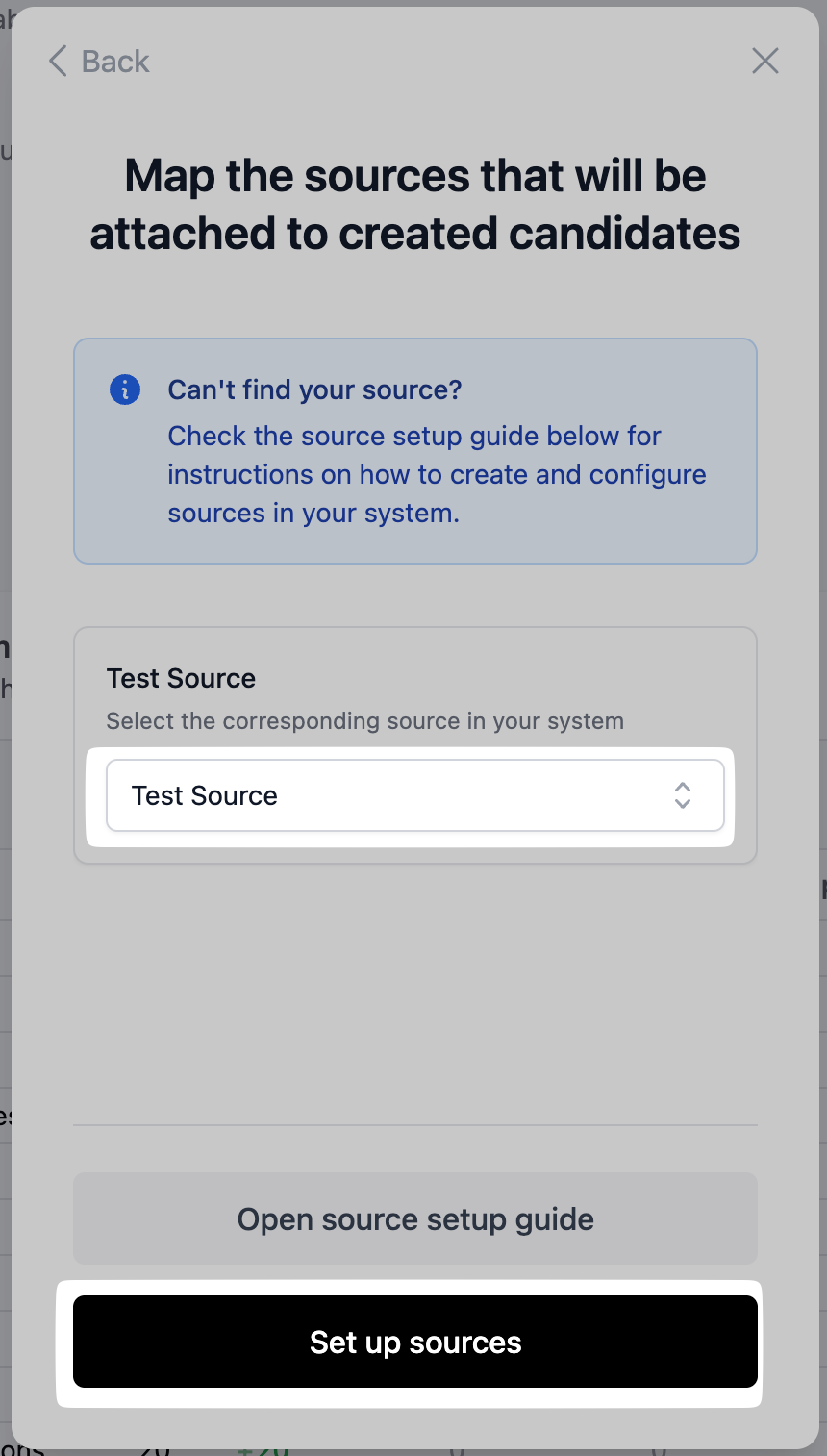
- Use the source name from the setup flow as the name of the source.
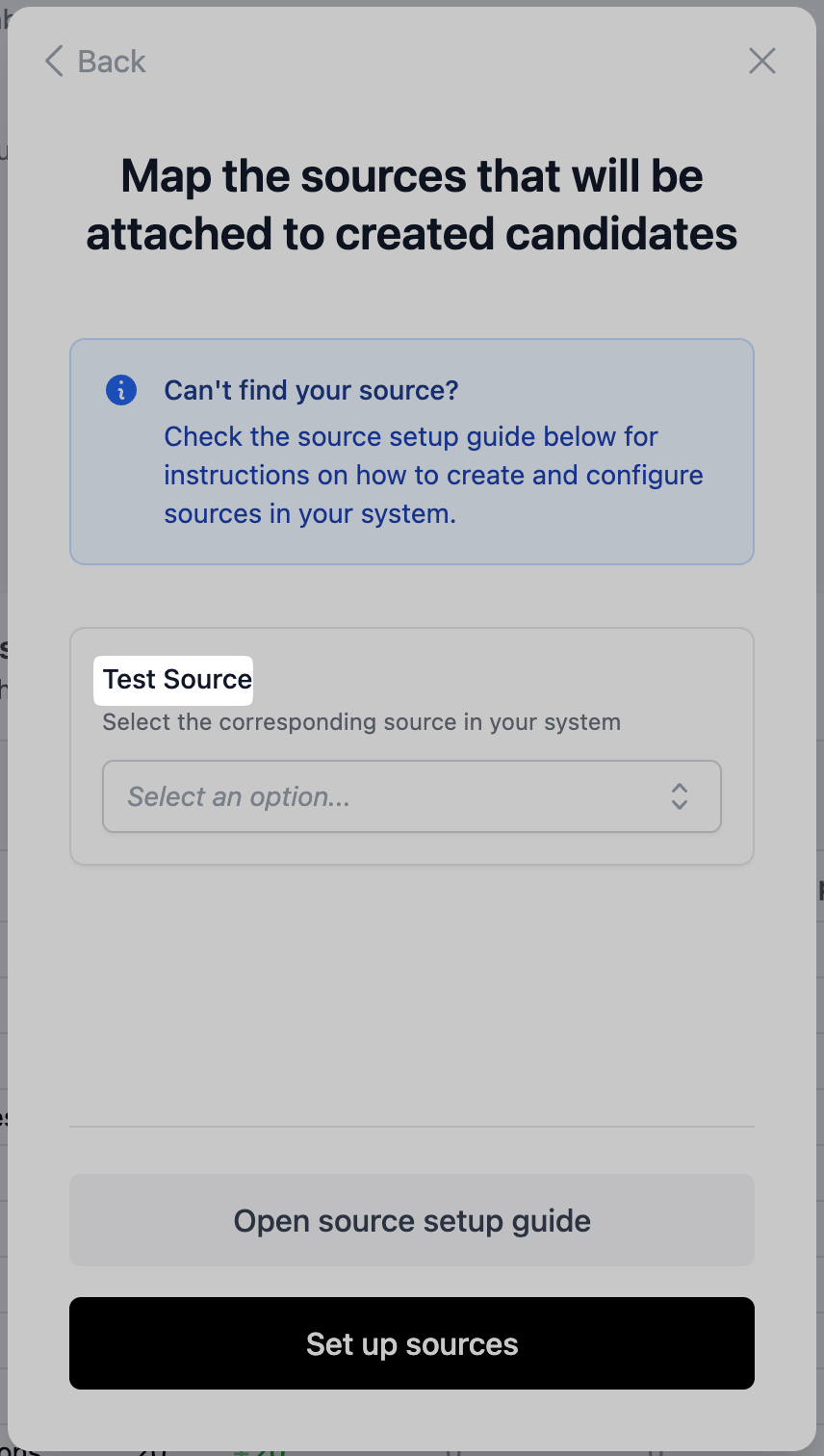
- Select the created source in the setup flow and complete the setup by clicking Set up sources.